Design as a Common Language of Art and Engineering
I keep coming back to my initial post and Leonardo DaVinci. Not because he’s an obvious reference, but because he’s an uncomfortable one. Uncomfortable because he makes the rest of us wonder where exactly we drew our own boundaries — and why.
Da Vinci didn’t distinguish between his anatomical sketches and his engineering drawings or his paintings. To him they were all the same activity: looking carefully at the world, understanding its underlying order, and imposing purposeful form onto it. That activity has a name: design.
Design is not a discipline. It’s a mode of thinking. And once we look at it that way, the artificial walls between art, engineering, and design itself start to look exactly like what they are — artificial.
The Bauhaus understood this. Walter Gropius founded the school in 1919 on the radical premise that craft, fine art, and industrial production were not separate vocations but a single one. Students learned to weave, to paint, to build, and to think systematically — all at once. While the school only lasted fourteen years before the Nazis shut it down, its influence is still visible in nearly every designed object you’ll encounter today. The idea was simple and profound: making things well requires the whole mind.
Charles and Ray Eames took that idea and ran with it. Their furniture — the molded plywood chairs, the lounge chair, the plastic shell series — is often described as design, sometimes as art, occasionally dismissed as mere manufacturing. But what it actually represents is a sustained inquiry into materials, human comfort, and form. Ray was a painter. Charles was an architect. Together they created objects that engineers admire for their structural ingenuity and artists admire for their elegance. The distinction never seemed to concern them much.
What all of these figures share is not a talent for crossing disciplines. It’s that they never fully accepted the division in the first place. For them, the question was always the same: what does this need to be, and what is the most honest and beautiful way to make it so?
That question is design. It lives equally in a mathematical proof, a composition study, and a stress analysis. It’s what Steve Jobs meant when he insisted that a circuit board no one would ever see should still be beautiful. The intent was not decoration — it was integrity. The belief that how something is made matters, even when no one is looking.
I think that’s what my notion360 has always been circling around. The idea that the left brain and right brain division is not a fact of nature but a failure of imagination. That the most interesting work happens in the space where thinking and making are indistinguishable.
Da Vinci knew that. The Bauhaus knew that. The Eameses knew that.
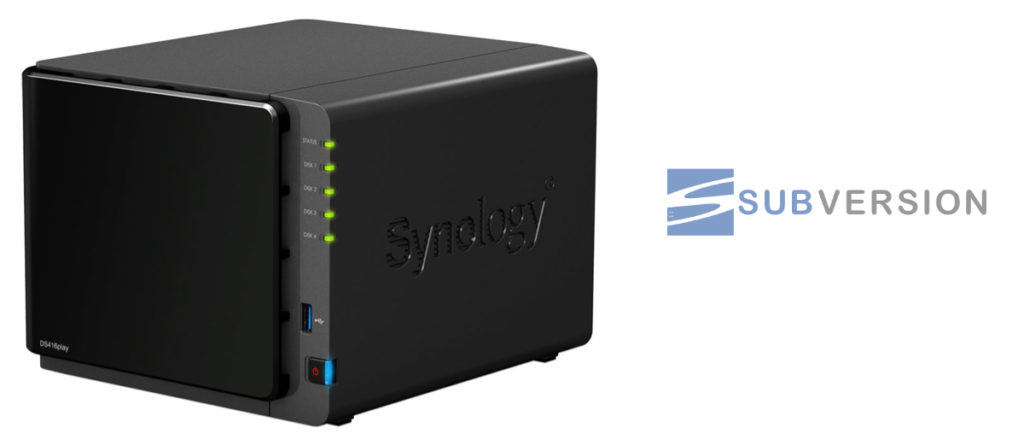
With DSM version 7 Synology decided to remove the SVN Server package from their distribution. Many developers, including myself, were caught by surprise. After upgrading to DSM V7.x, SVN just didn’t work anymore. It was gone! I have to admit that I didn’t pay attention to the release notes and I found out the hard way because my TurtoiseSVN client couldn’t connect to the repository anymore.
After evaluating my options I had to make a decision between downgrading my Synology NAS or running SVN inside of a Docker container. I didn’t want to downgrade so I decided for the Docker solution. I think Docker might come in handy later because there are a few things such as home automation that I’d like to try as well. If you’re interested in home automation, the image you’re looking for is Home Assistant. But I digress . . .
I need to mention that I have never worked with Docker or SVN Server before. I only used TurtoiseSVN for configuration management while the server was an easy to use DSM package. I had a bumpy ride!
Getting Docker
My decision to use Docker created another challenge because my DS416play DSM does not include the Docker package. Fortunately there is a manual install option in the Package Center. I downloaded the Docker package from the Synology archive at
and then used the manual install option of the Package Center. By the way, the latest Docker version may not work with your DSM version. If that’s the case you’ll see an error message during install and you have to go back and pick an earlier version from the archive.
Getting an SVN Server Image
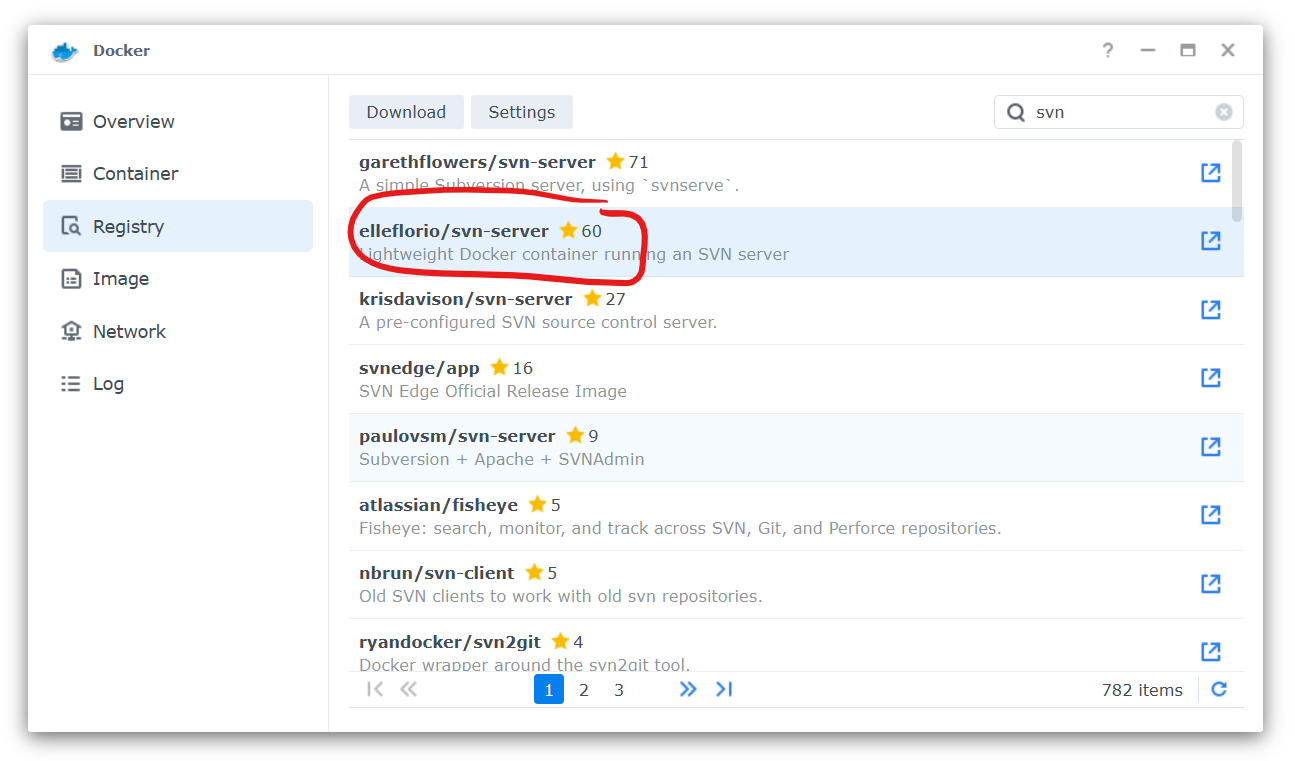
Next we need an SVN Server image to run inside our Docker container. There are several SVN images available at the Docker Hub. Looking at what’s available I opted for the elleflorio/svn-server. You can find an image through the Docker Registry tab by typing svn into the search box, select which image you want, and then chose Download.
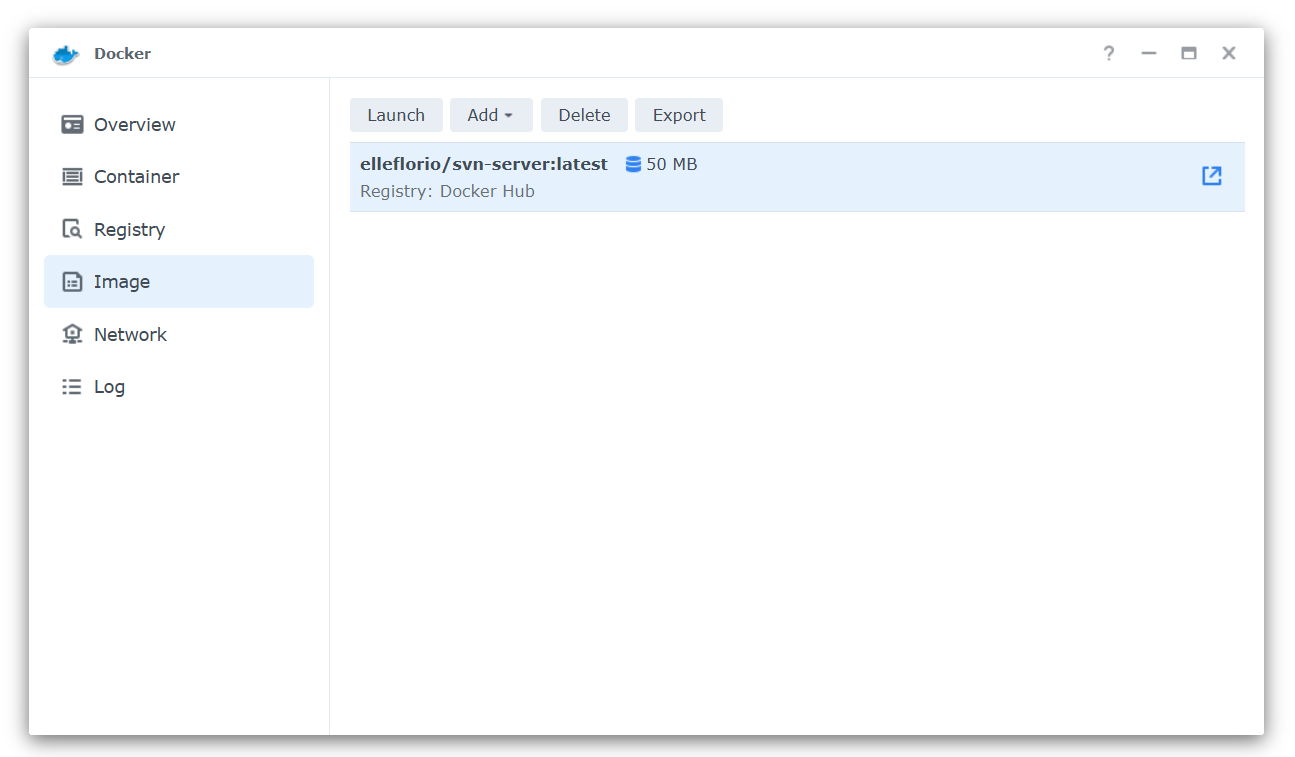
Once the package is downloaded the image is available on the Docker Image tab.
Creating a Docker Container
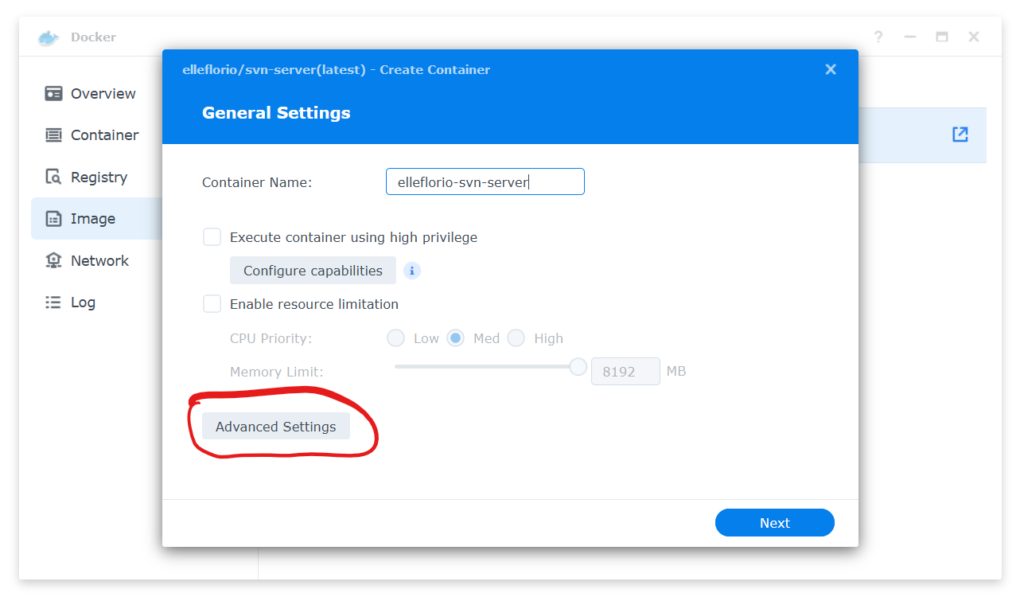
It’s time to create a Docker Container and launch the image. After clicking the Launch button we’ll get to the container settings. By the way, you can execute all these steps from a command line interface using PowerShell or PuTTY and SSH. All the CLI commands you need are listed at the Docker Hub page. But I’m lazy so I take the “easy way”. Click on Advanced Settings.
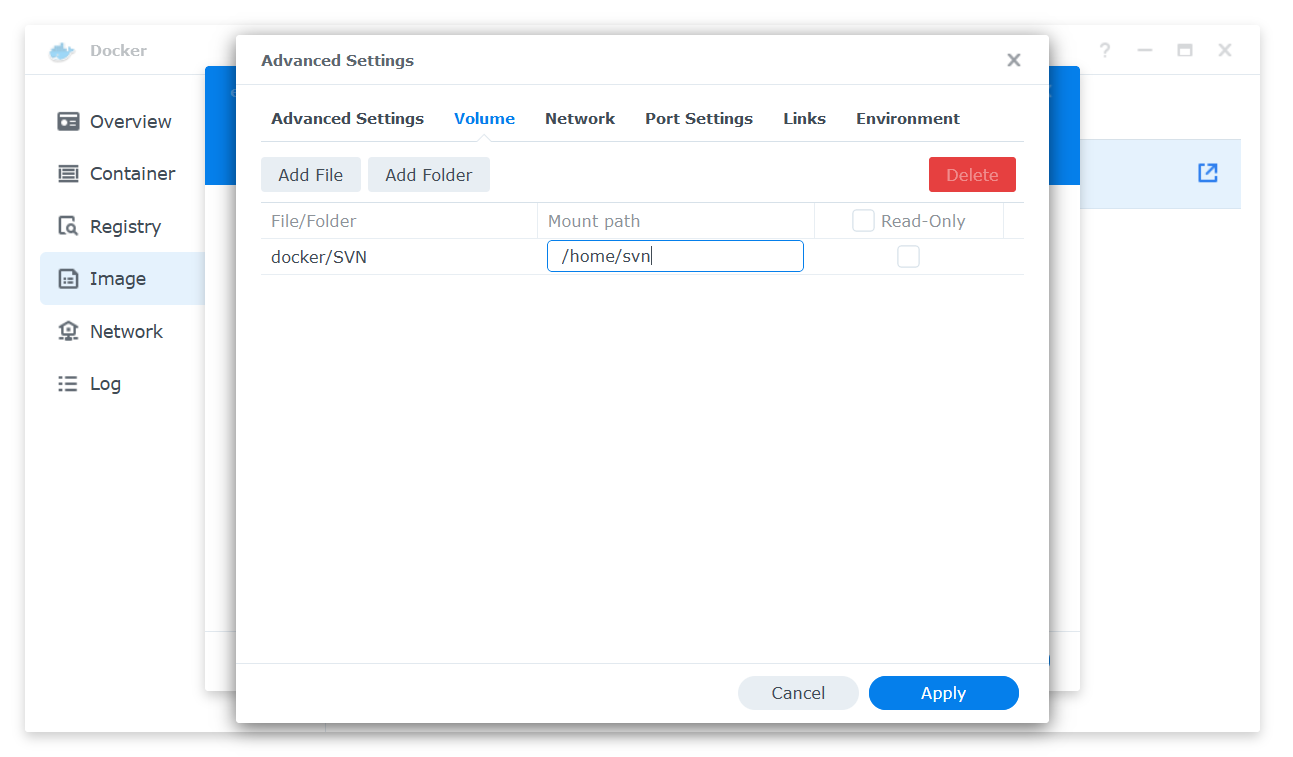
There’s one very important step in this process and that is to mount a Volume which is being used to store the repositories. Docker creates a share during install called “Docker”. Since I plan to have more than one container, each with a different purpose, I created a folder named SVN inside the Docker share for use by the SVN Server. We use this folder in the next step.
This folder needs to be mounted at /home/svn which is the default path from the SVN image. Other SVN images may use different paths. It is important to mount a volume outside of the container if you want to easily backup your repositories or access the repositories directly via file system. This comes in handy later when we have to configure access rights for the SVN repositories. Also make sure that “Read-Only” is NOT checked.
In this scenario the ports for accessing SVN Server are set automatically by the Docker configuration tool. If you want to map your own ports you’d want to change the values on the Port Settings tab. If you chose to keep the automatic setting the actual port settings can be found on the Docker Container tab under Details. Keep in mind that if you restart the container or reboot your NAS the ports may change!
Creating a Repository
From here on we need to use an SSH CLI to access the Docker container on the NAS. I use PuTTY but Windows PowerShell etc. work as well. First we want to test the SVN server and see if it’s running. To do so we need to create a SVN server username & password.
This will allow us to check the SVN repository via browser http[s]://<your-nas-ip>:<your-port>/svn
If it’s working it will show an empty repository. Sometimes you’ll see a @eaDir directory. That’s something the NAS creates and it can be deleted. Next step, we need to create a repository. Since svnadmin is included in the image we can use the create subcommand:
Make sure you use the /home/svn/ path in front of the repository name. This will create the repository at the mounted file system not inside the container. If we check the repository again at http[s]://<your-nas-ip>:<your-port>/svn it will show a repository with your <repository_name>. You can also go to the Docker share and find everything there. Unless you’re very familiar with SVN Server, do not change what’s in the repository folder. It may corrupt your repository.
Configuring the SVN Server
The last step is to edit the SVN configuration files. Each repository has its own configuration files. The files are located at docker/<repository_name>/conf/.
This creates an allaccess group and gives the user user_name access to all repositories from the repository root down. Again, more detail about this configuration can be found at the Apache Subversion web site.
This should be it to get your Docker SVN Server going. On first access with TurtoiseSVN or else it will ask you for your username/password. After that it’ll be a smooth ride.
I recently finished development of a WordPress plugin and published it at WordPress.org. It’s a landing page or splash screen for any wordpress blog or website called
N360 | Splash Screen
After a detailed code review by the WordPress team and a few revisions on my end, it was approved and it’s now available at the WordPress plugin repository. If you want to take a peek and see how it works, here is a link to my demo page.
If you’re running a WordPress website and you are brave enough to give the initial release a try you can install it directly from your WordPress admin plugin page. Search for N360 and it will pop up. Or you can download it from the WordPress repository and manually install it.